- Bournr shell (/bin/sh) เป็น shell ในยุคแรกๆ ที่มีใช้กันอย่างแพร่หลาย มีการกำหนดโครงสร้างภาษาคล้ายๆ กับภาษาอัลกอ (Algo) สามารถเขียน shell script ได้ และยังเป็น starndard shell ที่มีใน UNIX ทุกตัว และยังสามารถย้าย shell script ไปยัง UNIX ระบบอื่นโดยไม่ต้องแก้ไขอะไรได้อีกด้วย จะมี default prompt เป็นเครื่องหมาย “ $ ”
- C shell (/bin/csh) เป็น shell ที่พัฒนาขึ้นมาหลังจาก Bourne shell มีรูปแบบคำสั่งและไวยากรณ์เหมือนกับภาษา C มี function การทำงานหลายที่ดีและอย่างสะดวก อีกทั้งยังสามารถควบคุมการไหลของข้อมูลได้ดีกว่า Bourne shell และยังมีความสามารถในการเรียกใช้คำสั่งที่ใช้ไปแล้ว จะมี default prompt เป็นเครื่องหมาย “ % ”
- Korn shell (/bin/ksh) เป็น shell ที่พัฒนามาจาดต้นแบบของ Bourne shell และ C shell สามารถทำงานใน function ของ Bourne shell ได้ทุกอย่าง การเขียน shell script ทำได้ง่ายและรัดกุมขึ้น สามารถนำคำสั่งที่ใช้ไปแล้วกลับมา execute ไปใหม่ได้ ถือได้ว่า Korn shell เป็นการรวมเอาข้อดีของ Bourne shell และ C shell มาไว้ด้วยกัน แต่ไม่ได้มีใน UNIX ทุกตัว จะมี default prompt เป็นเครื่องหมาย “ $ ”
- Bournr again shell (/bin/bash หรือ /usr/local/bin/bash) เป็นการเอา Bournr shell นำกลับมาพัฒนาใหม่ สามารถทำงานแบบ line editing ได้ และยังได้เพิ่มประสิทธิภาพในการทำงานอีกหลายอย่าง bash shell นี้ไม่ใช่ standard UNIX shell แต่เป็น default shell ของ linux ในปัจจุบัน จะมี default prompt เป็นเครื่องหมาย “ $ ”
Lab 2-1 - Basic Bash Script
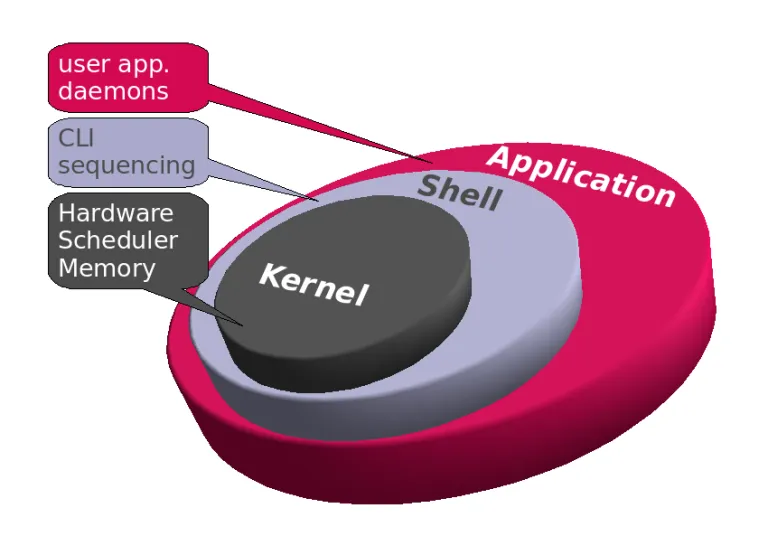
อ้างอิงจาก https://saixiii.com/basic-shell-script/
ตัวอย่าง Shell มี่นิยมใช้เขียน Shell script
Section titled “ตัวอย่าง Shell มี่นิยมใช้เขียน Shell script”Shell Script File
Section titled “Shell Script File”Shell script เป็น file text ธรรมดาสามารถสร้างด้วย editor ชนิดไหนก็ได้ เช่น nano หรือ vim
nano ex1.shshebang
Section titled “shebang”กำหนด interpreter หรือ shebang บรรทัดแรกของ shell script เราต้องกำหนด shebang เพื่อให้ program รู้ว่าควรใช้ interpreter ใดในการ load ข้อมูล file ซึ่งสัญลักษณ์ที่ใช้คือ #!<shell program>
#!/bin/sh#!/bin/csh#!/bin/bash#!/bin/ksh#!/usr/bin/perl#!/usr/bin/env python
คำสั่ง command line
Section titled “คำสั่ง command line”ใส่ชุดคำสั่ง command line ส่วนนี้คือ code program ที่เราต้องการให้ shell script ทำงาน ซึ่งสามารถศึกษาชุดคำสั่ง Shell ของ Unix และ Linux ได้
| คำสั่ง | Linux |
|---|---|
| display/output text | echo “hello world” |
| create file | touch a.txt |
| get content | cat a.txt more a.txt less a.txt |
| clear console | clear |
| copy file | cp a.txt b.txt |
| move file | mv a.txt ../b.txt |
| delete file | rm -i a.txt |
| list directory | ls . |
| list all files (include hidden) | ls -a |
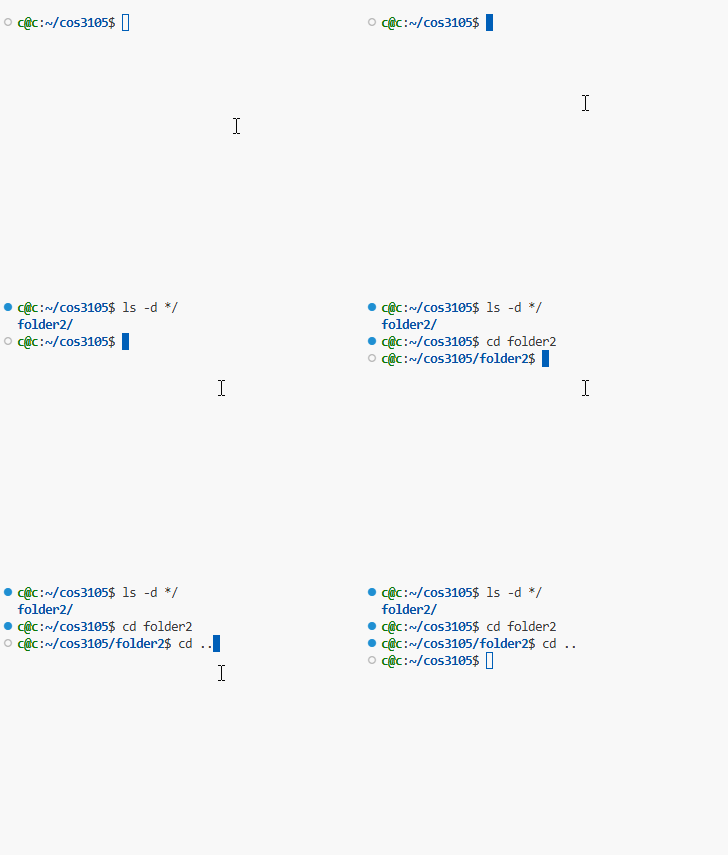
| create directory | mkdir my_folder |
| remove directory | rm -ri my_folder |
| change directory | cd my_folder |
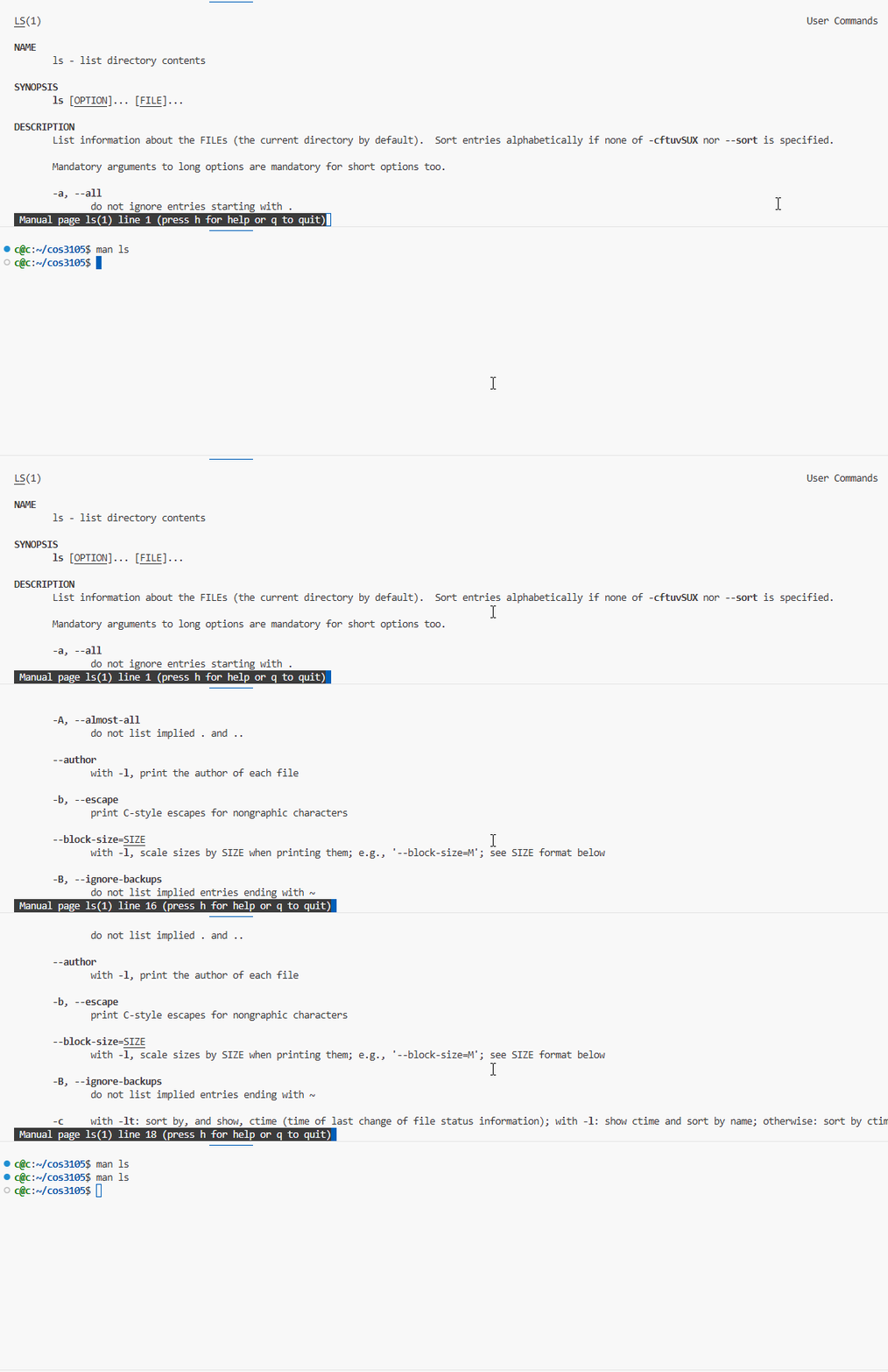
| ดู manual/help ของคำสั่ง | man ls |
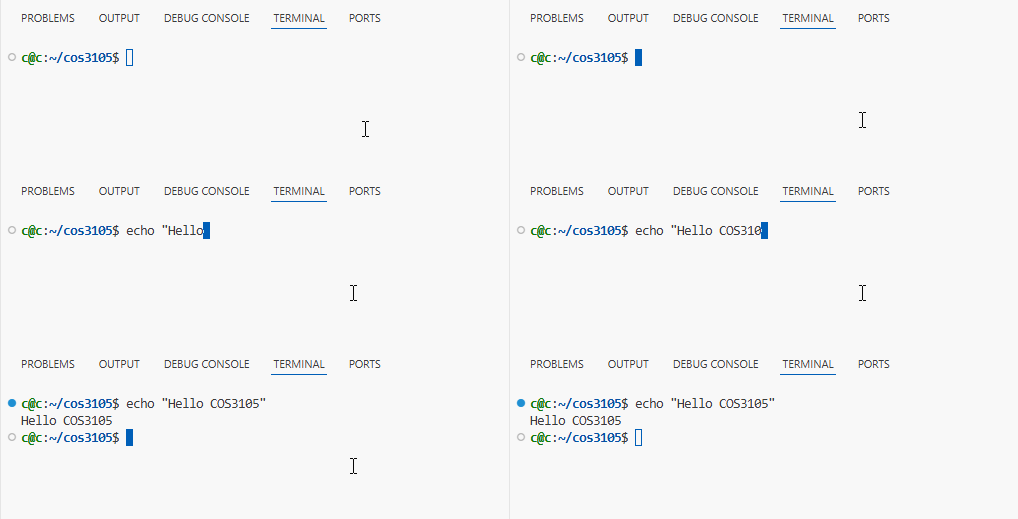
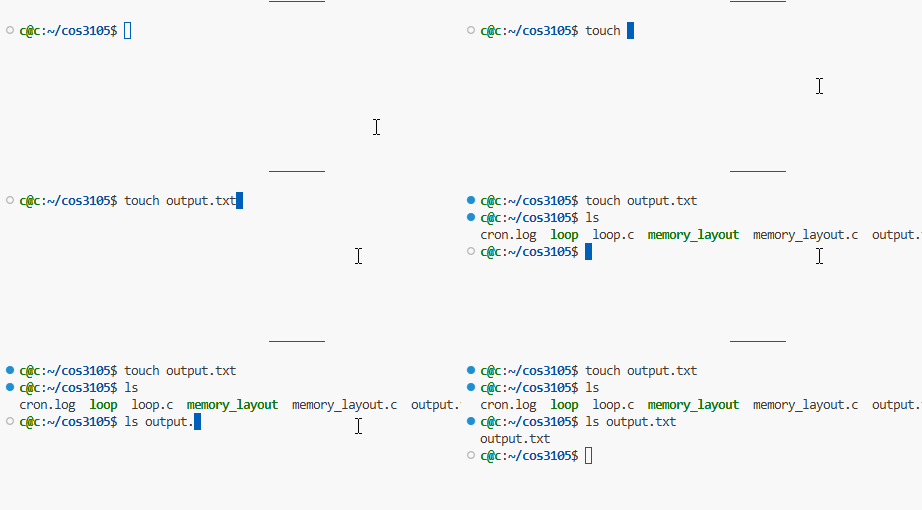
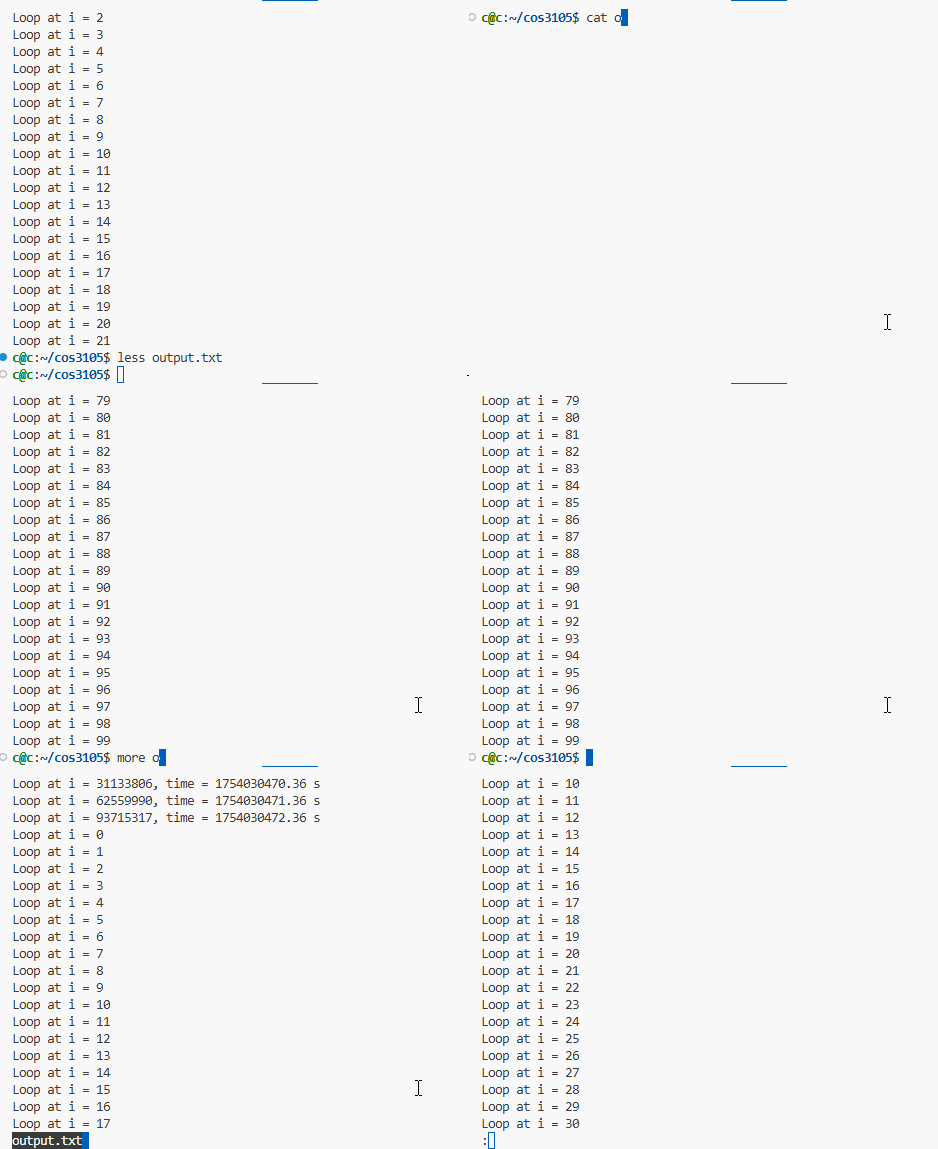


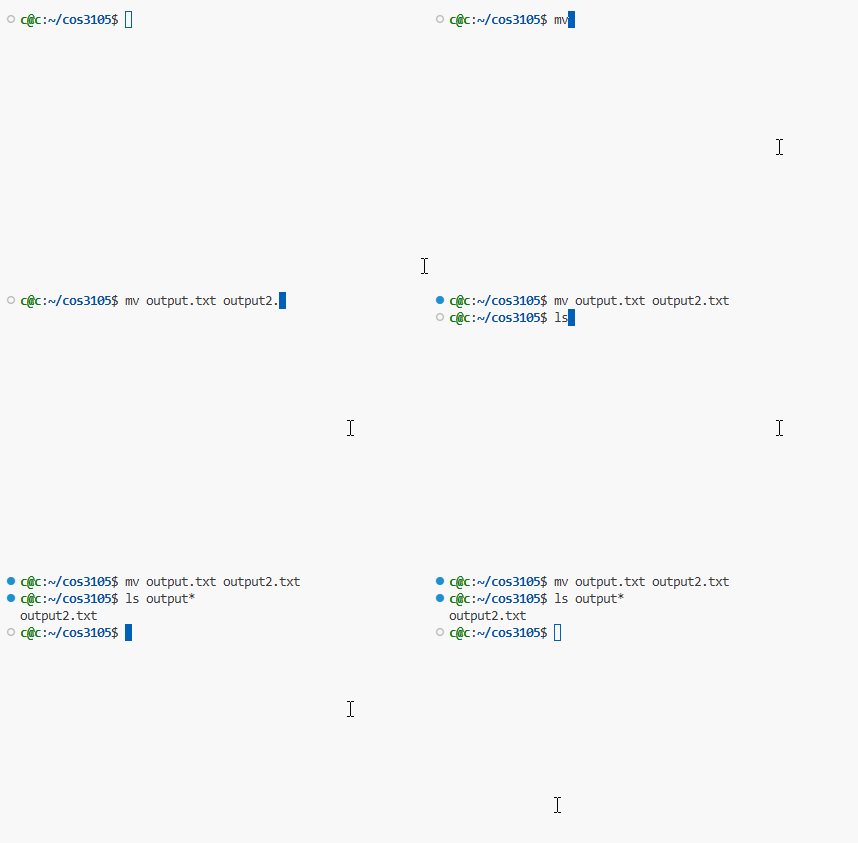
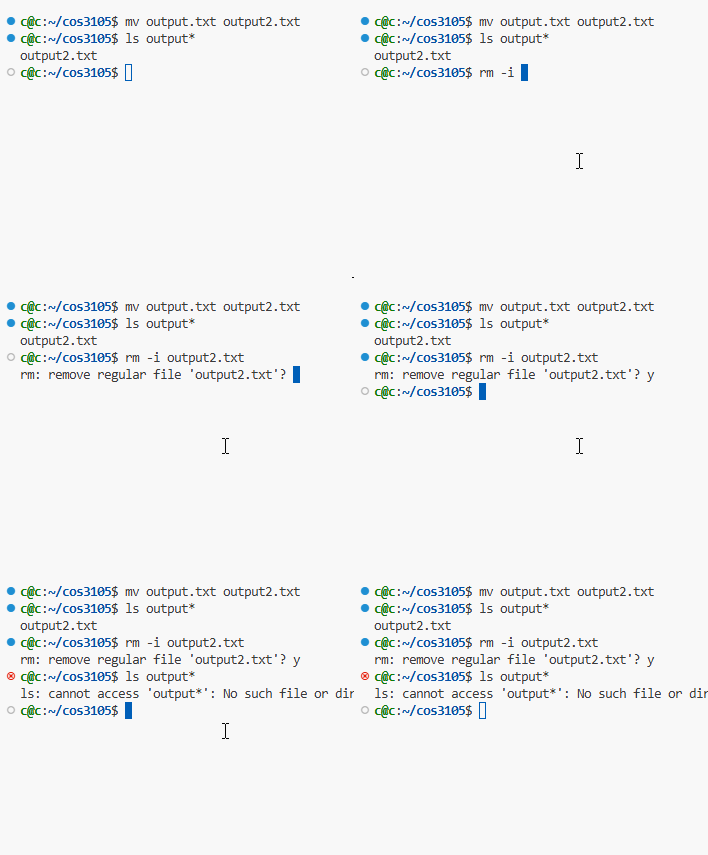
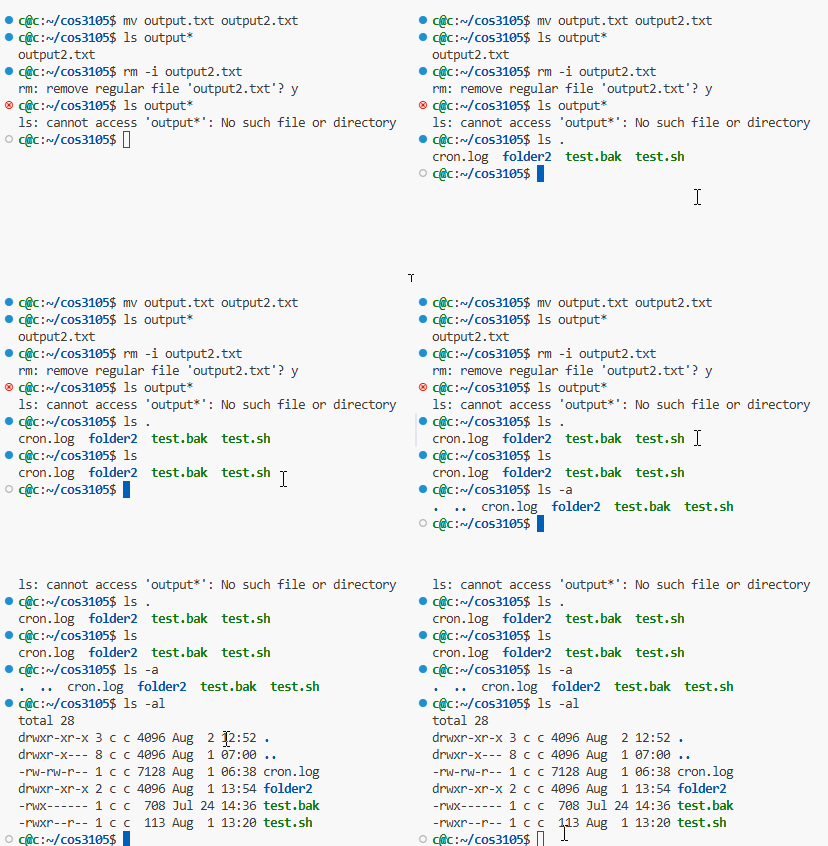
rm -ri
Section titled “rm -ri”
permission
Section titled “permission”กำหนดสิทธิ์ execute ให้กับ shell script
หลักจากเราสร้าง Shell script ขึ้นมาได้แล้ว ลองสังเกตุจะเห็นว่า file ที่ได้มีสิทธิ์ หรือ permission ของ user owner (-rw-rw-r–) เพียงแค่ write กับ read เท่านั้น ไม่สามารถ execute ได้ ซึ่งก็ไม่ต่างกับ text file ธรรมดา
c@c:~/cos3105$ ls -ltr test.sh-rw-r--r-- 1 c c 20 Jul 24 14:03 test.shexecute shell script
Section titled “execute shell script”ตอนจะรัน shell script ใช้คำสั่งดังนี้ แต่จากที่ผลลัพธ์คือรันไม่ได้
c@c:~/cos3105$ ./test.shbash: ./test.sh: Permission deniedต้องเปลี่ยน permission ของไฟล์ให้สามารถรันได้ก่อนนั่นก็คือ
c@c:~/cos3105$ chmod 700 test.shc@c:~/cos3105$ ls -ltr test.sh-rwx------ 1 c c 20 Jul 24 14:03 test.shซึ่งเมื่อมีเครื่อง x แล้วนั้นหมายถึงเราสามารถ execute file นี้ได้แล้ว
c@c:~/cos3105$ ./test.shHello COS3105Variable
Section titled “Variable”การสร้างตัวแปรใน shell script (variable) เชลล์สคริปต์เหมือนกับโปรแกรมทั่วๆไปที่มีตัวแปรไว้เก็บค่าต่างๆ สำหรับใช้งาน ตัวแปรที่ใช้ในเชลล์นั้นไม่จำเป็นต้องประกาศชนิดตัวแปรเหมือนกับภาษา C สามารถตั้งค่าแล้วนำไปใช้ได้ทันที
variable=value
#!/bin/bash
var1=Hellovar2=COS3105var3='Hello COS3105'var4="Hello COS3105"
การเรียกใช้งานตัวแปรใน shell script (variable) การเรียกใช้งานตัวแปรใน shell script (variable)
#!/bin/bash
var1=Hellovar2=COS3105var3='Hello COS3105'var4="Hello COS3105"var5='$var1 $var2'var6="$var1 $var2"
echo $var1echo $var2echo $var3echo $var4echo $var5echo $var6
ซึ่งผลลัพธ์ที่ได้คือ เครื่องหมาย Quote ( ‘ ) จะมีค่าตามสิ่งที่พิมพ์ ส่วนในเครื่องหมาย Double quote ( “ ) จะเป็นการอ้างอิงนำผลลัพธ์ที่ตัวแปรเก็บไว้หรือค่าที่ตัวแปรเก็บไว้มาใช้
c@c:~/cos3105$ ./test.shHelloCOS3105Hello COS3105Hello COS3105$var1 $var2Hello COS3105Environment variable
Section titled “Environment variable”การใช้งานตัวแปร environment (environment variable) ตัวแปรที่ใช้ในเชลล์จะมีสองชนิดด้วยกัน คือ
- ตัวแปรธรรมดา (variable)
- ตัวแปรสภาพแวดล้อม (environment variable)
#!/bin/bash
echo $PWDecho $USER
ซึ่งผลลัพธ์ที่ได้คือ $PWD คือ Print Working Directory
c@c:~/cos3105$ ./test.sh/home/c/cos3105cถ้าเราเรียกใช้ตัวแปรที่ไม่ได้อยู่ใน environment ผลลัพธ์ที่ได้จะมีค่าเป็น null
#!/bin/bash
echo $NAME
วิธีแก้คือ
c@c:~/cos3105$ export NAME="Krit Chomaitong"หลังจากนั้น
c@c:~/cos3105$ ./test.shKrit Chomaitongหรือวิธีอื่นๆดังนี้
- วิธีที่ 1
#!/bin/bashexport NAME="Krit Chomaitong"แล้วในอีกไฟล์จะมีการเรียกใช้
#!/bin/bashsource ./export_environment_variable.shecho 'call NAME='$NAME- วิธีที่ 2
#!/bin/bashexport NAME="Krit Chomaitong"echo 'export NAME='$NAME
./call_environment_variable2.sh    # NAME is inherited since call_environment_variable2.sh is a child process
ไฟล์ที่มีการใช้ environment variable
#!/bin/bash
echo 'call NAME='$NAME
Special Variable
Section titled “Special Variable”ตัวแปรแบบพิเศษ
| ตัวแปร | ความหมาย |
|---|---|
$0 $1 $2 … |
ใช้สำหรับอ้างอิงชื่อ shell script และ Argument ของ shell script เรียกว่า position parameter |
$# |
ใช้บอกจำนวน Argument ที่อยู่ใน shell script นั้นๆ |
$* |
แทน Argument ของ script เรียงกันทั้งหมด |
$@ |
คล้ายกับ $* แต่จะใช้ช่องว่างคั่นระหว่าง position parameter |
$? |
ใช้แสดงสถานการณ์จบการทำงานครั้งสุดท้าย ถ้าสั่งได้ถูกต้องไม่มี error จะแสดงค่า 0 ออกมา แต่ถ้าผิดพลาดจะแสดงค่าที่ไม่ใช่ 0 ออกมา |
$! |
ใช้แสดง process ID ของ shell ที่ทำงานอยู่ |
$0 $1 $2
Section titled “$0 $1 $2”#!/bin/bash
echo $0 $1c@c:~/cos3105$ ./test.sh hello world./test.sh hello$#
#!/bin/bash
echo $#c@c:~/cos3105$ ./test.sh hello world2#!/bin/bash
echo $*c@c:~/cos3105$ ./test.sh hello world aaahello world aaa#!/bin/bash
echo $@c@c:~/cos3105$ ./test.sh hello world aaahello world aaa#!/bin/bashecho "hello"echo $?c@c:~/cos3105$ ./test.shhello0#!/bin/bash
# ต้องใช้ long process อย่าง sleep ถึงจะบอกได้ว่า process ID คืออะไรsleep 30 & echo $!c@c:~/cos3105$ ./test.sh14213การ Comment
Section titled “การ Comment”ใช้เครื่องหมาย # สำหรับการ comment (ยกเว้นบรรทัดแรกเพราะเป็น shebang)
#!/bin/bash
# Test Commentvar=helloecho $var
จากผลลัพธ์ที่ได้ โปรแกรมจะไม่แสดงบรรทัดที่ comment ออกมา
c@c:~/cos3105$ ./test.shhelloตัวแปร Array
Section titled “ตัวแปร Array”#!/bin/bash
txt[0]="a"txt[1]="b"txt[2]="c"
echo $txt[0] $txt[1] $txt[2]echo ${txt[0]} ${txt[1]} ${txt[2]}ผลลัพธ์ที่ได้
c@c:~/cos3105$ ./test.sha[0] a[1] a[2]a b cCommand Substitution
Section titled “Command Substitution”#!/bin/bash
result=$(ls)
echo $resultOUTPUT
c@c:~/cos3105$ ./test.shbio.db bio.txt cron.log email.sh lab2-2.sh lab2.sh test.bak test.shArithmetic Expression
Section titled “Arithmetic Expression”- ใช้
$(())หรือletก็ได้
#!/bin/bash
a=1b=0c=$((a/b))echo $c
b=2let c=a*becho $c
OUTPUT
./test.sh: line 3: a/b: division by 0 (error token is "b")
2
Expression
Section titled “Expression”integer
Section titled “integer”#!/bin/bash
int1=1int2=2int3=1
if [ "$int1" -eq "$int3" ]then echo "$int1 equal $int3"fi
if [ "$int1" -ne "$int2" ]then echo "$int1 not equal $int2"fi
if [ "$int2" -gt "$int1" ]then echo "$int2 greater than $int1"fi
if [ "$int2" -ge "$int1" ]then echo "$int2 greater than or equal $int1"fi
if [ "$int1" -lt "$int2" ]then echo "$int1 less than $int2"fi
if [ "$int1" -le "$int2" ]then echo "$int1 less than or equal $int2"fiOUTPUT
c@c:~/cos3105$ ./test.sh1 equal 11 not equal 22 greater than 12 greater than or equal 11 less than 21 less than or equal 2string
Section titled “string”#!/bin/bash
str1="Hello"str2="Hello"str3="World"str4=" "str5=""
if [ "$str1" = "$str2" ]then echo "$str1 equal $str2"fi
if [ "$str2" != "$str3" ]then echo "$str1 not equal $str3"fi
if [ -n "$str4" ]then echo "$str4 is not empty"fi
if [ "$str4" ]then echo "$str4 contains space"fi
if [ !"$str5" ]then echo "$str5 is empty"fi
if [ -z "$str5" ]then echo "$str5 is also empty"fiOUTPUT
c@c:~/cos3105$ ./test.shHello equal HelloHello not equal World is not empty contains space is empty is also empty#!/bin/bash
folderName="folder2"fileName="bio.txt"
if [ -d "$folderName" ]then echo "$folderName is a folder"fi
if [ -f "$fileName" ]then echo "$fileName is a file"fi
if [ -r "$fileName" ]then echo "$fileName is readable"fi
if [ -w "$fileName" ]then echo "$fileName is writable"fi
if [ -x "$fileName" ]then echo "$fileName is executable"fi
if [ -s "$fileName" ]then echo "$fileName is not empty"fiOUTPUT
c@c:~/cos3105$ ./test.shfolder2 is a folderbio.txt is a filebio.txt is readablebio.txt is writablebio.txt is not empty- && คือ and ต้องใช้ภายใต้ [[…]]
- || คือ or ต้องใช้ภายใต้ [[…]]
#!/bin/bash
a=5b=10
if [[ $a -lt 10 && $b -gt 5 ]]; then    echo "Both conditions are true"fi
if [[ $a -lt 5 || $b -gt 5 ]]; then echo "At least one condition is true"fiif elif else
Section titled “if elif else”#!/bin/bash
a=5b=10
if [ "$a" -eq "$b" ]; then echo "$a equals $b"else echo "$a not equals $b"fi
if [ "$a" -eq "$b" ]; then echo "$a equals $b"elif [ $((a * 2)) -eq "$b" ]; then echo "$a * 2 equals $b"fiOUTPUT
c@c:~/cos3105$ ./test.sh5 not equals 105 * 2 equals 10switch case
Section titled “switch case”- รูปแบบคำสั่ง
case string in str1) commands;; str2) commands;; str3) commands;; *) commands;;esacตัวอย่าง
#!/bin/bash
var1="cat"
case $var1 in "ant") echo "It is an ant";; "bee") echo "It is an bee";; "cat") echo "It is an cat";; *) echo "I don't know";;esac
OUTPUT
c@c:~/cos3105$ ./test.shIt is an catwhile loop
Section titled “while loop”- รูปแบบคำสั่ง
while [ expression ]do commands ………….doneตัวอย่าง
#!/bin/bash
num=1
while [ $num -le 5 ]do echo "Loop $num" ((num = $num+1))done
OUTPUT
c@c:~/cos3105$ ./test.shLoop 1Loop 2Loop 3Loop 4Loop 5for loop
Section titled “for loop”- รูปแบบคำสั่ง
for var in listdo commands ………….doneตัวอย่าง1
#!/bin/bash
for i in 1 2 3 4 5do echo "Loop $i"done
OUTPUT
c@c:~/cos3105$ ./test.shLoop 1Loop 2Loop 3Loop 4Loop 5ตัวอย่าง2
#!/bin/bash
for ((i=1;i<5;i++))do echo "Loop $i"done
OUTPUT
c@c:~/cos3105$ ./test.shLoop 1Loop 2Loop 3Loop 4การรับค่า input จาก script
Section titled “การรับค่า input จาก script”#!/bin/bash
var0=$0var1=$1var2=$2
echo "$0, $1 , $2"OUTPUT
c@c:~/cos3105$ ./test.sh 1 2./test.sh , 1 , 2redirection
Section titled “redirection”- output redirection
| คำสั่ง | ความหมาย |
|---|---|
echo "Hello" > file.txt |
Write output to file.txt (overwrite) |
echo "Hello" >> file.txt |
Append output to file.txt |
- input redirection
| คำสั่ง | ความหมาย |
|---|---|
cat < file.txt |
Read from file.txt |
การรับค่าจาก Keyboard
Section titled “การรับค่าจาก Keyboard”#!/bin/bashecho "Enter your name:"read nameecho "Hello, $name!"OUTPUT
c@c:~/cos3105$ ./test.shEnter your name:KritHello, Krit!การใช้ grep
Section titled “การใช้ grep”- grep = “global regular expression print”
- ดึงค่า name:
name: Krit Chomaitongbirth date: 22/10/1999address: 123 Maplewood Lane, Fairview, CA 90210, USAOUTPUT
c@c:~/cos3105$ grep "name: " bio.txtname: Krit Chomaitongการใช้ cut ร่วมกับ grep
Section titled “การใช้ cut ร่วมกับ grep”#!/bin/bash
cut -d':' -f2- bio.txt # -d for single character
grep "^name:" bio.txt | cut -d':' -f2- # grep with cutOUTPUT
c@c:~/cos3105$ ./test.sh Krit Chomaitong 22/10/1999 123 Maplewood Lane, Fairview, CA 90210, USA Krit Chomaitongการใช้ sed
Section titled “การใช้ sed”- ค้นหา
name:
#!/bin/bashsed -n 's/^name:\(.*\)/\1/p' bio.txtOUTPUT
c@c:~/cos3105$ ./test.sh Krit Chomaitong- การอัพเดต
name:
#!/bin/bashsed -i 's/^name:.*/name:Krit Chomaitong2/' bio.txt # updatesed -n 's/^name:\(.*\)/\1/p' bio.txt # print match name:OUTPUT
c@c:~/cos3105$ ./test.sh Krit Chomaitong2การใช้ history ร่วมกับ grep
Section titled “การใช้ history ร่วมกับ grep”historyOUTPUT
c@c:~/cos3105$ history 1 curl -fsSL https://code-server.dev/install.sh | sh 2 sudo apt install neovim build-essential gcc g++ gdb 3 python- การใช้ร่วมกับ grep โดยใช้ pipe
history | grep catOUTPUT
c@c:~/cos3105$ history | grep cat 63 cat output.txt 67 cat cron.log 71 cat cron.log 76 cat output.txt 79 cat cron.logการแสดงวันที่
Section titled “การแสดงวันที่”#!/bin/bash
d=$(date)echo $decho "$(date)"echo $(date)echo "`date`"dateOUTPUT
c@c:~/cos3105$ ./test.shSun Aug 3 01:39:36 PM UTC 2025Sun Aug 3 01:39:36 PM UTC 2025Sun Aug 3 01:39:36 PM UTC 2025Sun Aug 3 01:39:36 PM UTC 2025Sun Aug 3 01:39:36 PM UTC 2025- format date
| Format | ความหมาย | ตัวอย่าง |
|---|---|---|
%Y |
ปี (4 หลัก) | 2025 |
%y |
ปี (2 หลัก) | 25 |
%m |
เดือน (01-12) | 08 |
%d |
วัน (01-31) | 03 |
%H |
ชั่วโมง (00–23) | 19 |
%M |
นาที (00–59) | 50 |
%S |
วินาที (00–59) | 00 |
%A |
ชื่อวัน (เต็ม) | Sunday |
%a |
ชื่อวัน (ย่อ) | Sun |
%B |
ชื่อเดือน (เต็ม) | August |
%b |
ชื่อเดือน (ย่อ) | Aug |
ตัวอย่าง
#!/bin/bashdate +"%Y-%m-%d"date +"%Y-%m-%d %H:%M:%S"date -d "tomorrow" +"%Y-%m-%d" # tomorrowOUTPUT
c@c:~/cos3105$ ./test.sh2025-08-032025-08-03 13:43:252025-08-04แหล่งอ้างอิง
- https://saixiii.com/basic-shell-script/
- https://panupong-simto.medium.com/linux-daily-commands-%E0%B8%A3%E0%B8%A7%E0%B8%A1%E0%B8%84%E0%B8%B3%E0%B8%AA%E0%B8%B1%E0%B9%88%E0%B8%87%E0%B8%A5%E0%B8%B4%E0%B8%99%E0%B8%B8%E0%B8%81%E0%B8%8B%E0%B9%8C%E0%B9%81%E0%B8%99%E0%B8%B0%E0%B8%99%E0%B8%B3%E0%B9%84%E0%B8%94%E0%B9%89%E0%B9%83%E0%B8%8A%E0%B9%89%E0%B8%97%E0%B8%B8%E0%B8%81%E0%B8%A7%E0%B8%B1%E0%B8%99-675d40615524
- https://sysadmin.psu.ac.th/shellscript-example-01/
- https://nopnithi.medium.com/%E0%B8%AA%E0%B8%A3%E0%B8%B8%E0%B8%9B%E0%B8%84%E0%B8%AD%E0%B8%A3%E0%B9%8C%E0%B8%AA-introduction-to-bash-shell-scripting-%E0%B8%82%E0%B8%AD%E0%B8%87-coursera-75193563ca0a
- https://kb.hostatom.com/content/2226/
- https://www.baeldung.com/linux/echo-date-quotes-backticks
- https://pongpitta.medium.com/%E0%B8%81%E0%B8%B2%E0%B8%A3%E0%B9%83%E0%B8%8A%E0%B9%89%E0%B8%87%E0%B8%B2%E0%B8%99-crontab-%E0%B8%9A%E0%B8%99-linux-server-6272d376ecdb
- https://crontab.guru/examples.html